OPTIGA™ Authenticate NBT Host Library for Swift: User guide
The OPTIGA™ Authenticate NBT Host Library for Swift offers an extensive API to interact with the OPTIGA™ Authenticate NBT and to utilize its full functionality. The host library is mainly intended to be used in iOS/macOS applications interfacing to the OPTIGA™ Authenticate NBT via NFC (for example: mobile phones or NFC readers).
Scope and purpose
This guide describes the features and functionality of OPTIGA™ Authenticate NBT Host Library for Swift including architecture overviews of core libraries and basic descriptions. It also conveys the basic procedure to integrate the provided host library into existing iOS and macOS applications.
Intended audience
This guide is primarily intended for:
iOS application developers who target to integrate the OPTIGA™ Authenticate NBT Host Library for Swift into iOS applications
macOS application developers who target to integrate the OPTIGA™ Authenticate NBT Host Library for Swift in macOS applications using NFC readers
Key features
Sends command APDUs (C-APDU) and receives response APDUs (R-APDU) from the OPTIGA™ Authenticate NBT
Configuration of OPTIGA™ Authenticate NBT via its configurator application
Personalization and operational commands to support simplified interaction with the OPTIGA™ Authenticate NBT
Enables the host application to build, encode, and decode NDEF records and messages with the NDEF library
Supports building and parsing NDEF records of types “NFC Forum well known type” and “NFC Forum external type”
Supports OPTIGA™ Authenticate NBT brand protection record
Host library architecture
This host library provides high-level command abstractions to communicate with the OPTIGA™ Authenticate NBT. It includes multiple sub-libraries in its package. The core libraries are designed to be platform-independent.
Core libraries
The OPTIGA™ Authenticate NBT Host Library for Swift provides three core libraries to interact with the OPTIGA™ Authenticate NBT.
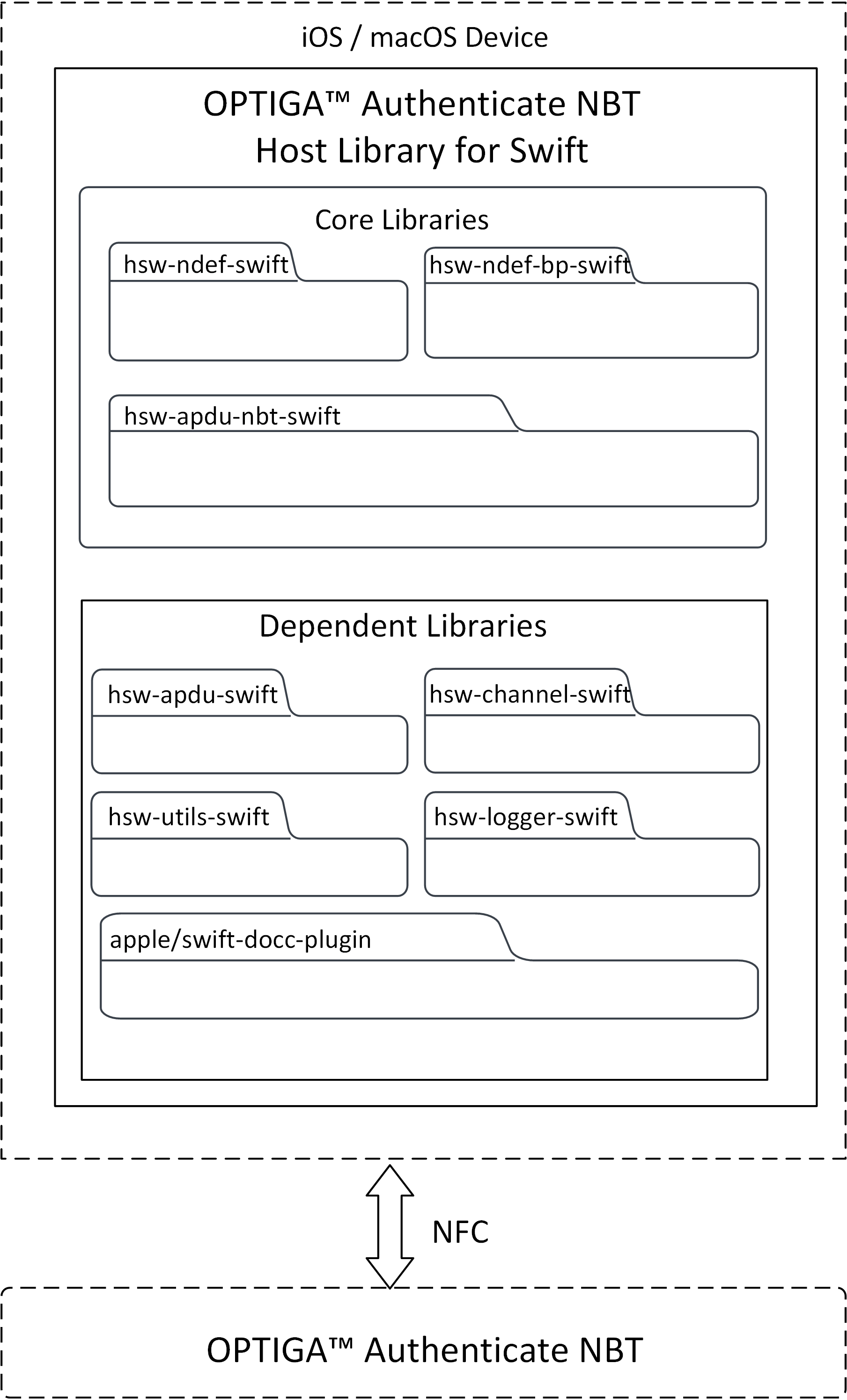
Fig. 18 Software architecture of the OPTIGA™ Authenticate NBT Host Library for Swift.
hsw-apdu-nbt-swift
This library allows the application to send C-APDUs to the OPTIGA™ Authenticate NBT and receive R-APDUs from the OPTIGA™ Authenticate NBT. This library can be used with communication channels such as NFC and PCSC.
hsw-ndef-swift
The NFC Data Exchange Format (NDEF) specification by NFC Forum defines a common data format to exchange information between NFC Forum devices. This library provides support to build and parse the NDEF messages, with support for common NDEF record type definitions. This library is extensible for the addition of new record type definitions.
hsw-ndef-bp-swift
The NFC brand protection record library is an extension to the NDEF library to create and parse the NFC brand protection records for the OPTIGA™ Authenticate NBT. This extended library includes NDEF records and parsers to provide the core brand protection functionality of the OPTIGA™ Authenticate NBT. Brand protection-specific encoding and decoding are handled by the library itself. But this library depends on the hsw-ndef-swift library for registering its records and for further NDEF record and message manipulations.
Dependent libraries
The core libraries are dependent on several other libraries. A detailed description of these dependent libraries is provided below.
Dependent libraries |
Description |
|---|---|
This APDU library helps in building the APDU command bytes and parses the APDU response bytes according to the ISO/IEC 7816-4 specification. |
|
This dependent library provides the communication protocol interface for the OPTIGA™ Authenticate NBT APDU core library. This protocol provides interfaces such as initialize, transceive, and terminate to communicate with the OPTIGA™ Authenticate NBT. |
|
This dependent library provides the utility methods such as for byte conversions, string conversions, and bit operations. |
|
This dependent library provides the methods to log different levels of log messages. |
Directory structure
The directory structure of the OPTIGA™ Authenticate NBT Host Library for Swift follows the pitchfork layout including core and dependent libraries.
hsw-nbt-swift
|-- LICENSES/                       # Includes licenses used by the host library
|-- Sources/                        # Includes the core and dependent libraries
|   |-- InfineonNbt/                # Includes source file of the host library package
|   |-- hsw-apdu-nbt-swift/         # Core library
|   |-- hsw-apdu-swift/             # Dependent library
|   |-- hsw-channel-swift/          # Dependent library
|   |-- hsw-logger-swift/           # Dependent library
|   |-- hsw-ndef-bp-swift/          # Core library
|   |-- hsw-ndef-swift/             # Core library
|   `-- hsw-utils-swift/            # Dependent library
|-- docs/                           # Includes userguide, images and the generated API reference
|-- .gitignore                      # Library specific gitignore file
|-- .swiftlint.yml                  # Includes Swift lint configurations
|-- Package.swift                   # Includes build configurations of the library
`-- README.md                       # Overview of hsw-nbt-swift library
Swift build system
The OPTIGA™ Authenticate NBT Host Library for Swift is integrated with Swift Package Manager to ensure a smooth and consistent workflow for building iOS and macOS applications. The host library supports the respective OS with the following versions only:
iOS version 15 and higher
macOS version 11 and higher
Build as library
The Swift host library uses the Swift Package Manager to build.
# Build the code
swift build
Documentation
The OPTIGA™ Authenticate NBT Host Library for Swift API documentation is available in the “docs/” folder. For more information on the API, build the Swift-DocC documentation. To generate documentation using Swift-DocC, navigate to the root directory of OPTIGA™ Authenticate NBT Host Library for Swift in the terminal and run the below command.
swift package generate-documentation
This will generate the DocC documentation and save it to .build/plugins/Swift-DocC/outputs of the host library.
Navigate to
.build/plugins/Swift-DocC/outputspath and right click on the required.doccarchivefile (for example:InfineonNbt.doccarchive) and select ‘Open with Xcode’.Now the DocC documentation can be viewed in the Xcode documentation previewer.
Integrating into an existing project
Using the Swift Package Manager as a build tool, integrating the host library into an existing project is straightforward. Here is how you can add the host library as a dependency into a Swift project:
Swift based project
Place the OPTIGA™ Authenticate NBT Host Library for Swift into the Sources/hsw-nbt-swift folder of the existing application
Open the Package.swift file in the existing application project
Add the host library’s path in Package.swift as dependency
dependencies: [
// Dependencies declare other packages that this package depends on.
.package(path: "Sources/hsw-nbt-swift")
   ]
Add the host library as a dependency to the existing project target
targets: [
   // Targets are the basic building blocks of a package. A target can define a module or a test suite.
   // Targets can depend on other targets in this package, and on products in packages this package depends on.
   .target(
      name: "ExistingSwiftProject",
dependencies: [
.product(name: "InfineonNbt", package: "hsw-nbt-swift")
      ]
   )
]
Save the Package.swift file
The OPTIGA™ Authenticate NBT Host Library for Swift is now integrated into the existing Swift project and ready for use
Import the host library’s packages into the existing codebase and start using the host library’s functionality
# Including as separate packages
import InfineonNdef
import InfineonApduNbt
import InfineonNdefBrandProtection
Xcode IDE project
To integrate the OPTIGA™ Authenticate NBT Host Library for Swift into an existing iOS or macOS application in Xcode IDE, follow the steps below.
Place the OPTIGA™ Authenticate NBT Host Library for Swift inside the root path of the existing iOS/macOS application project
Open Xcode IDE
Open the existing iOS/macOS application project
Select the Xcode project file and navigate to the “Package Dependencies” tab
Click ‘+’ icon
In the dialog box that appears, click “Add Local” option
Browse and select the host library’s path
Click “Add Package”. In the next dialog box that appears, make sure the right package and target is selected and click “Add Package”
The host library is now integrated into Xcode project and ready for use
Import the Swift file(s) into the existing codebase and start using the host library’s functionality
# Including as separate packages
import InfineonNdef
import InfineonApduNbt
import InfineonNdefBrandProtection
Library interaction
An example interaction between the core libraries is explained below with a use case - Update URI data in an application file of the OPTIGA™ Authenticate NBT. The hsw-ndef-swift library is used to prepare a URI record and update it on the file system of the OPTIGA™ Authenticate NBT using the hsw-apdu-nbt-swift library.
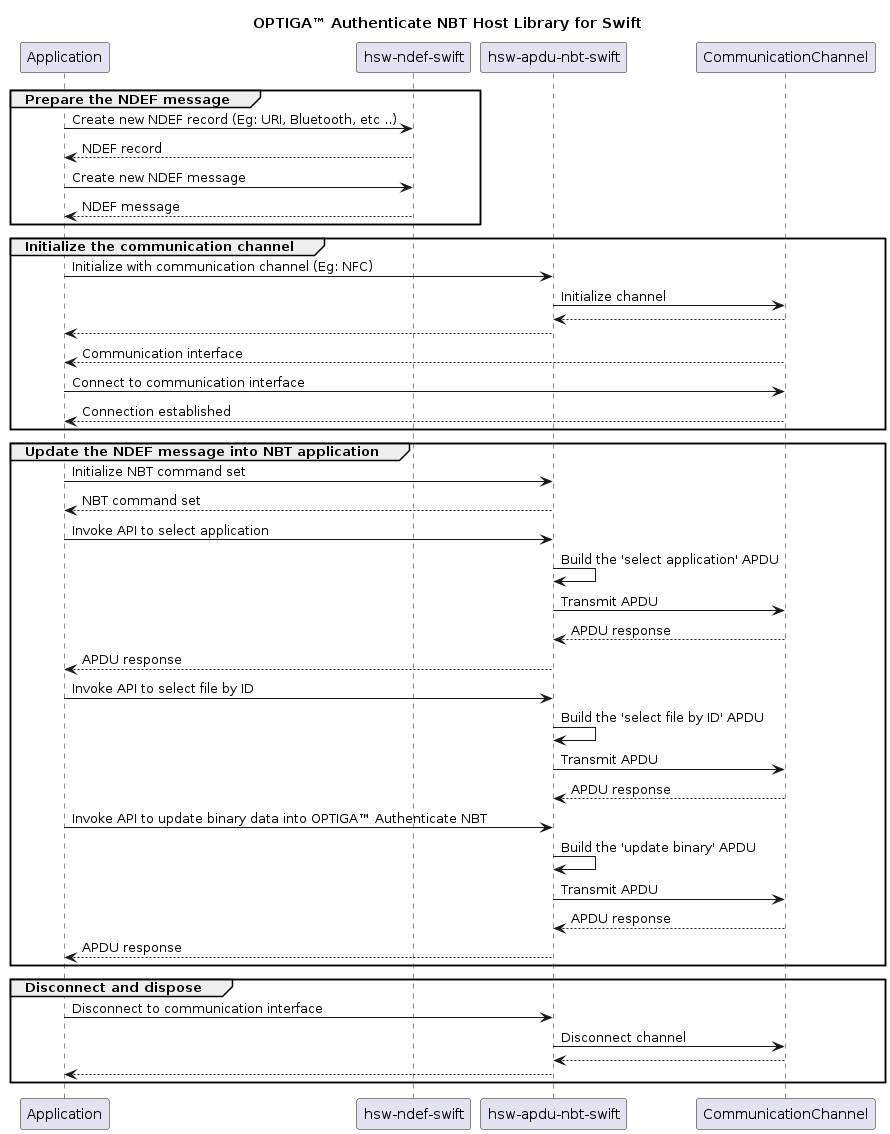
Fig. 19 Interaction between the components of the OPTIGA™ Authenticate NBT Host Library for Swift.
Library usage
The usage of the host library’s API to update a URI record in the OPTIGA™ Authenticate NBT device application file is illustrated below.
Include the required headers from the host library
//ndef headers
import InfineonNdef
import InfineonNdefBrandProtection

//apdu headers
import InfineonApduNbt
import InfineonUtils
import InfineonApdu
import InfineonLogger
Create a logger and initialize it. Refer to the example section in
hsw-logger-swift/README.mdfor creating a logger//TODO: Implement example logger //Initialize the Logger let exampleLogger : ExampleLogger = ExampleLogger() //Set the log level (The logger levels, in order of increasing verbosity, are: `none`, `error`, `warning`, `info`, `debug`, and `all`) exampleLogger.setLogLevel(loggerLevel: LoggerLevel.info)
Create a communication channel and initialize it. Refer to the example section in
hsw-channel-swift/README.mdfor creating a communication channel interface// Implement example communication channel interface(For example: PCSC, NFC) // Code placeholder // Initialize the Channel interface let exampleChannel = ExampleChannel() // Initialize the APDU channel with communication channel let apduChannel = ApduChannel(channel : ctkChannel, logger: exampleLogger)
Initialize the command set
// Create an instance of the NBT APDU command set
let commandSet = try NbtCommandSet(channel: apduChannel)

// Connect to the OPTIGA™ Authenticate NBT (It can return empty data)
_ = try await apduChannel.connect(data: nil)
Update the NDEF message with the URI record in the NDEF file (File ID: 0xE104)
do {
    //...

    // Build URI record
    let uriRecord = try UriRecord(uriIdentifier: UriRecord.UriIdentifier.uriHttpsWww, uri: "infineon.com")

    // Encode the records into an NDEF message
    let message = NdefMessage(ndefRecords: [uriRecord])
    let uriMessageBytes = try NdefManager.encode(message: message)
    let uriMessageBytesWithLength = try NdefManager.encode(message: message, includeLength: true)
    //Log the Apdu response
    exampleLogger.info(header: "Uri Message Bytes", data: uriMessageBytesWithLength)


    var apduResponse = try await commandSet.selectApplication()
    // Checks SW success, else throws an error
    _ = try apduResponse.checkOK()
    // Returns response status word
    _ = apduResponse.getSW()
    //Log the Apdu response
    exampleLogger.info(header: "APDU response", data: apduResponse.getData())

    apduResponse = try await commandSet.selectFile(fileId: 0xe104)
    _ = try apduResponse.checkOK()
    //Log the Apdu response
    exampleLogger.info(header: "APDU response", data: apduResponse.getData())

    let offset: UInt16 = 0x0000
    apduResponse = try await commandSet.updateBinary(offset: offset, data: uriMessageBytesWithLength)
    _ = try apduResponse.checkOK()
    // Returns response data bytes
    _ = apduResponse.getData()
    //Log the Apdu response
    exampleLogger.info(header: "APDU response", data: apduResponse.getData())
} catch {}
References
Infineon Technologies AG: OPTIGA™ Authenticate NBT, Extended Datasheet