Mobile phone app (Android)
The NBT Brand Protection mobile phone app (view on GitHub) is a Java-based Android Studio project which showcases the OPTIGA™ Authenticate NBT in the brand protection (BP) with offline authentication use case.
Installation
Instructions to build the app and install it on an Android device can be found in the README file of the GitHub repository (view on GitHub). For more detailed step-by-step instructions on how to install the app, refer to the use case’s step-by-step guide.
Software architecture
This Android app consists of two activity and utilizes the modules of the OPTIGA™ Authenticate NBT Host Library for Java to implement its application logic.
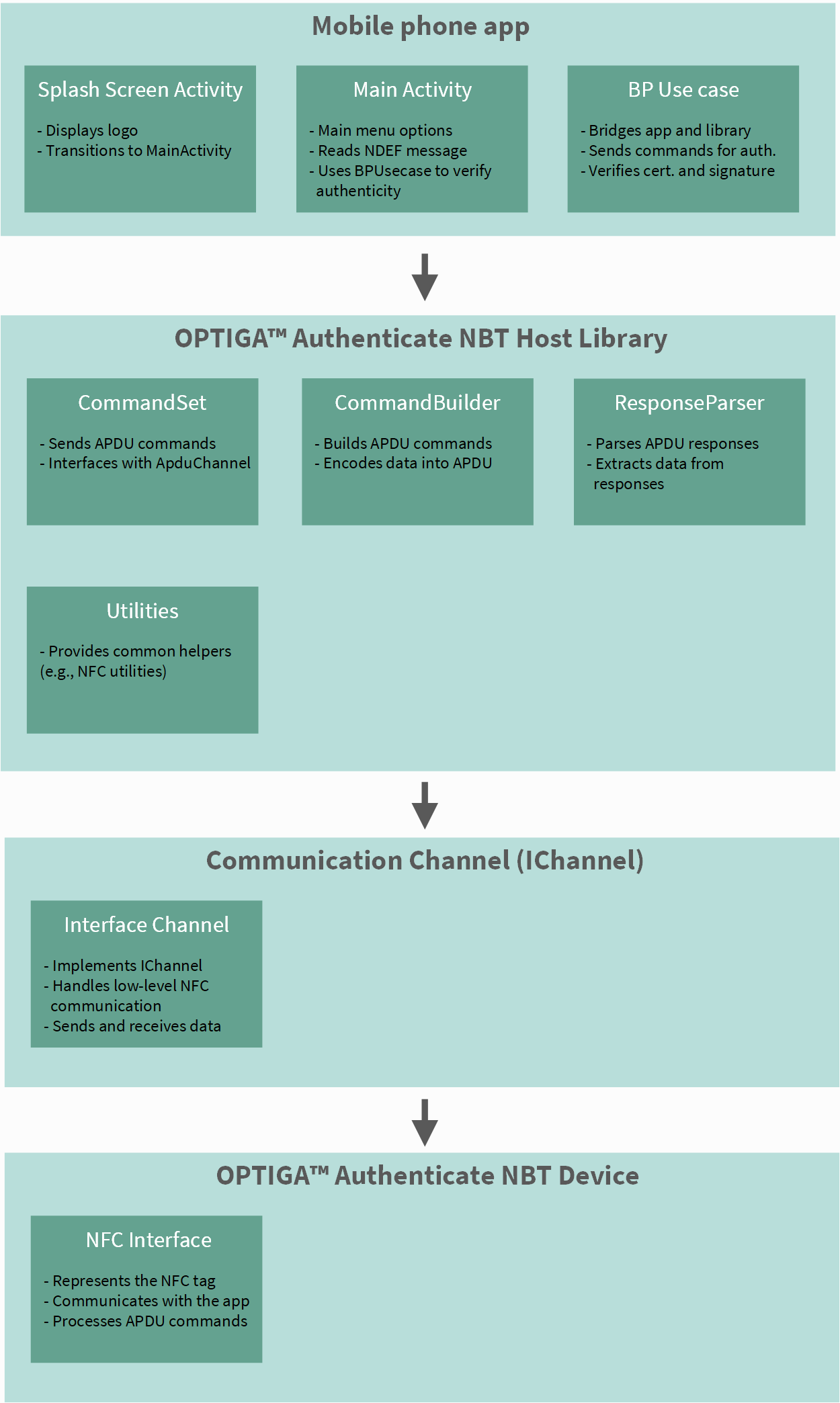
Fig. 47 High-level software architecture of the Android app.
Components
Mobile application:
SplashScreenActivity: Displays the splash screen and transitions to the main menu.
MainActivity: Manages menu options and NFC tag data.
BrandProtectionUsecase: Executes BP commands using the library.
INdefHandler: Parses and processes NDEF messages.
InfineonHandler: Processes certificates and cryptographic operations.
AndroidHandler: Provides Android-based certificate handling.
OPTIGA™ Authenticate NBT host library:
CommandSet: Sends APDU commands to the device.
CommandBuilder: Formats APDU commands.
ResponseParser: Extracts data from device responses.
Utilities: Offers cryptographic and data formatting tools.
IChannel: Interface, defining communication methods.
Communication channel:
InterfaceChannel: Implementation of the IChannel interface for Android.
Application flow
This example application reads and verifies the certificate stored in the NDEF file of the OPTIGA™ Authenticate NBT device. By tapping the NFC antenna of the mobile phone to the device, the app reads the certificate, verifies its validity, and authenticates the device using a random challenge-response mechanism.
The application starts in the SplashScreenActivity, which displays a splash
screen for a few seconds before transitioning to the main menu
(MainActivity). The MainActivity waits for the user tap the mobile phone
to the OPTIGA™ Authenticate NBT device. Once the NFC tag is detected, the app
establishes a communication channel with the device and processes the
certificate data. The application flow is shown in the following figure.
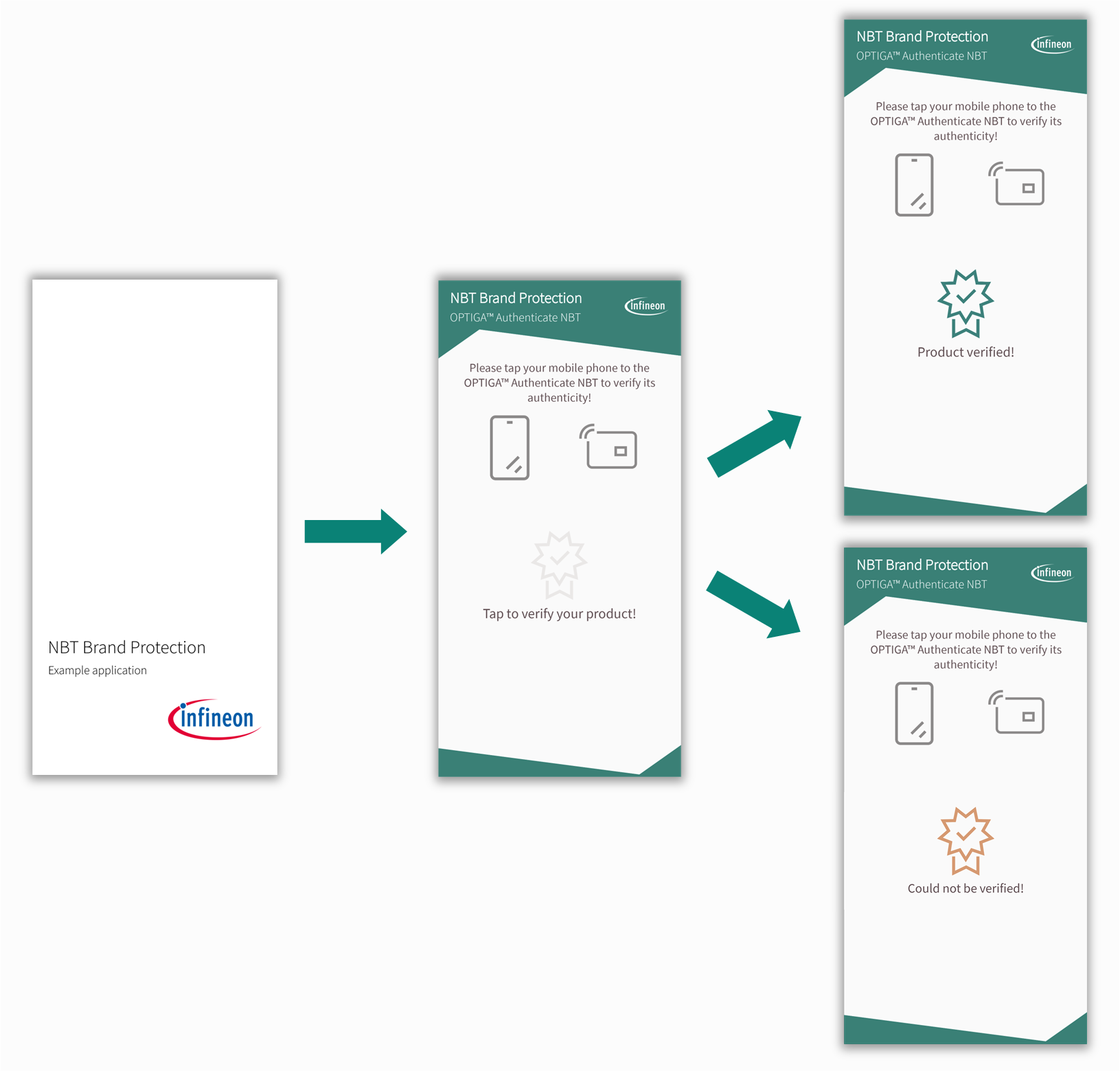
Fig. 48 Visualization of the app’s activities during operation.
Processing steps
After detecting a new NFC tag, the MainActivity calls the onNewIntent()
method to initiate the communication channel with the OPTIGA™ Authenticate NBT device.
Afterwards it calls the handleUsecase() method of the
BrandProtectionUsecase class to process the certificate and authentication steps.
The BrandProtectionUsecase class handles the processing of the certificate and authentication
steps. The respective methods include:
Parse the certificate from the tag’s NDEF message (
parseCertFromNdef()).Verify the certificate (
verifyCertificate()).Send an authenticate command (
authenticate()) with a random challenge to receive a signature from the OPTIGA™ Authenticate NBT.Extract the public key from the root certificate and verify the signature received in the previous step (
verifySignature()).
Application details
The application is developed using Android Studio and follows the standard Android project structure.
Project layout
The project is structured as a standard Android Studio project. The main
application is located in the app folder, and the library modules are
located in the app/libs folder. The library modules are included in
the project as dependencies.
The following is the directory structure of the project, highlighting the most important folders and files:
optiga-nbt-example-bp-android/
├── app/                          # Main Android application folder
│   ├── libs/                     # Includes the required library modules
│   │   ├── hsw-apdu-java/        # Dependent library for APDU commands
│   │   ├── hsw-apdu-nbt-java/    # Core library for NBT functionality
│   │   ├── hsw-channel-java/     # Dependent library for communication channels
│   │   ├── hsw-ndef-bp-java/     # Library for NDEF handling in brand protection use case
│   │   ├── hsw-ndef-java/        # Dependent library for NDEF handling
│   │   └── hsw-utils-java/       # Dependent library for utility functions
│   ├── src/main/                 # Application source code
│   │   ├── java/                 # Java source files
│   │   │   └── com.infineon.css.nbt_brandprotection_demonstrator/
│   │   │       ├── usecase_brandprotection     # Package for brand protection use case
│   │   │       ├── MainActivity.java           # Main menu activity
│   │   │       └── SplashScreenActivity.java   # Splash screen activity
│   │   ├── res/                  # Application resources (layouts, strings, etc.)
│   │   └── AndroidManifest.xml   # Android manifest file
│   └── build.gradle              # App-specific Gradle build configuration
├── docs/                         # Documentation for the project
├── gradle/                       # Gradle wrapper configuration files
├── README.md                     # Overview of the Android application
├── gradlew                       # Gradle wrapper script
├── gradlew.bat                   # Gradle wrapper startup script for Windows
└── settings.gradle               # Gradle project settings file
Project configuration
Below is the configuration from this project in the build.gradle file of the app module:
android {
   compileSdk 35  // Specifies the SDK version used to compile the app
   buildToolsVersion "35.0.0"  // Version of the build tools to use

   defaultConfig {
      applicationId "com.infineon.css.nbt_adt_demonstrator"  // Unique application ID
      minSdk 30  // Minimum SDK version required to run the app
      targetSdk 34  // Target SDK version for which the app is optimized
      versionCode 20261103  // Build number, the release date (YYYYMMDD)
      versionName "1.0.3"  // User-visible version name
      ...
   }
   ...
}
Certificates for verification
Filename |
Path |
Comment |
|---|---|---|
sample_root_certificate.pem |
|
OPTIGA™ Authenticate NBT dummy manufacturing certificate |
nfc_bridge_cl_tag_devices _manufacturing_ca.pem |
|
Infineon NFC bridge and CL tag devices manufacturing certificate |
Integration of the Java host library
This Android app includes the OPTIGA™ Authenticate NBT
Host Library for
Java.
The library modules are manually copied from the GitHub repository, placed in
the app/libs folder and added as dependencies to the
project, as follows:
// filepath: app/build.gradle
dependencies {
   ...
   implementation project(':com.infineon.hsw.ndef')
   implementation project(':com.infineon.hsw.utils')
   implementation project(':com.infineon.hsw.channel')
   implementation project(':com.infineon.hsw.ndef')
   implementation project(':com.infineon.hsw.ndef.bp')
   implementation project(':com.infineon.hsw.apdu')
   implementation project(':com.infineon.hsw.apdu.nbt')
   }
// filepath: settings.gradle
include ':app'
include('com.infineon.hsw.utils')
include('com.infineon.hsw.channel')
include('com.infineon.hsw.ndef')
include('com.infineon.hsw.ndef.bp')
include('com.infineon.hsw.apdu')
include('com.infineon.hsw.apdu.nbt')

// Specify the paths to the library modules
project(':com.infineon.hsw.utils').projectDir = file('app/libs/hsw-utils-java')
project(':com.infineon.hsw.channel').projectDir = file('app/libs/hsw-channel-java')
project(':com.infineon.hsw.ndef').projectDir = file('app/libs/hsw-ndef-java')
project(':com.infineon.hsw.ndef.bp').projectDir = file('app/libs/hsw-ndef-bp-java')
project(':com.infineon.hsw.apdu').projectDir = file('app/libs/hsw-apdu-java')
project(':com.infineon.hsw.apdu.nbt').projectDir = file('app/libs/hsw-apdu-nbt-java')
Handling NFC in the app
The app uses NFC to communicate with the OPTIGA™ Authenticate NBT device. Below is an overview of how NFC is configured and used in the project.
NFC configuration
Permissions: To allow the app to access and use the NFC interface, the following lines have to be added to the AndroidManifest:
<uses-permission android:name="android.permission.NFC" />
<uses-feature android:name="android.hardware.nfc" android:required="true" />
Background dispatch
Background dispatch defines how the mobile phone behaves when an NFC tag is tapped when this app is not in the foreground (for example when the home screen is active). In order to open this application when an NFC tag is tapped, it can be configured to allow background dispatch. This registers the app for a certain type NFC tag content - and the app will be opened when the tag is tapped.
Intent filters: The app listens for NFC events using intent filters, also defined for the respective activity in app/src/AndroidManifest.xml.
This is done by adding the following lines to the entry activity SplashScreenActivity of the AndroidManifest:
<activity android:name="com.infineon.css.nbt_brandprotection_demonstrator.SplashScreenActivity">
   <intent-filter>
      <action android:name="android.nfc.action.NDEF_DISCOVERED"/>
      <category android:name="android.intent.category.DEFAULT"/>
      <data android:mimeType="text/plain" />
   </intent-filter>
   ....
</activity>
As seen in the snippet above, the app is configured to listen for ACTION_NDEF_DISCOVERED intents.
This intent has the highest priority in the Android tag dispatch system, other intents such as ACTION_TECH_DISCOVERED or ACTION_TAG_DISCOVERED will not be dispatched to the app as long as the app is registered for this intent.
See developer.android.com for more details.
Technology filters: Supported NFC technologies are defined in res/xml/nfx_tech_filter.xml:
To filter for ACTION_TECH_DISCOVERED a dedicated XML file needs to be created, specifying the technologies supported by the app.
<tech-list>
      <tech>android.nfc.tech.Ndef</tech>
</tech-list>
If the scanned tag supports all technologies of a tech-list set defined in the
nfx_tech_filter.xml file, the app will be opened when the tag is tapped. To
register the app for the ACTION_TECH_DISCOVERED intent, the following lines
have to be added to the entry activity SplashScreenActivity of the
app/src/AndroidManifest.xml file:
<activity android:name="com.infineon.css.nbt_brandprotection_demonstrator.SplashScreenActivity">
   ....
   <intent-filter>
      <action android:name="android.nfc.action.TECH_DISCOVERED"/>
   </intent-filter>
   <meta-data android:name="android.nfc.action.TECH_DISCOVERED" android:resource="@xml/nfx_tech_filter" />
   ....
</activity>
It makes sense to register the ACTION_TECH_DISCOVERED intent for
applications intended to interact with NFC tags on custom APDU level (not using
the NDEF file). Since this is the case for the ADT application, the app is
registered for the ACTION_TECH_DISCOVERED intent as well.
Foreground dispatch
Foreground dispatch is used to ensure that the app receives NFC intents when it is in the foreground. This is configured in the source code of the activities that handle NFC events.
Intent filters: For foreground dispatch, the Intent filter is configured in the onResume() method of each activity.
//Setting intent to recognized NFC Type A tags with NFC interface
pendingIntent = PendingIntent.getActivity(this, 0,
         new Intent(this, getClass()).addFlags(Intent.FLAG_ACTIVITY_SINGLE_TOP), PendingIntent.FLAG_MUTABLE);
intentFiltersArray = null; /
techListsArray =  new String[][] { new String[] { NfcA.class.getName() } };
For more information, refer to the official documentation on developer.android.com.
Enable/Disable: The app uses foreground dispatch to ensure that it receives NFC intents when it is in the foreground.
This is done by calling enableForegroundDispatch() in the onResume() method of the activities and disableForegroundDispatch() in the onPause() method.
@Override
protected void onResume() {
   super.onResume();
   NfcAdapter.getDefaultAdapter(this).enableForegroundDispatch(this, pendingIntent, intentFiltersArray, techListsArray);
}

@Override
protected void onPause() {
   super.onPause();
   NfcAdapter.getDefaultAdapter(this).disableForegroundDispatch(this);
}
Handling NFC intents: The app handles NFC intents in the onNewIntent() method of the activities.
The app retrieves the NFC tag from the intent and uses it to establish a communication channel (ApduChannel) with the OPTIGA™ Authenticate NBT device.
@Override
protected void onNewIntent(Intent intent) {
   super.onNewIntent(intent);

   Log.d("NFC-debug", "Intent.getAction() = " + intent.getAction().toString());
   if (NfcAdapter.ACTION_TECH_DISCOVERED.equals(intent.getAction())) {
      Tag tag = intent.getParcelableExtra(NfcAdapter.EXTRA_TAG);
      IsoDep com = IsoDep.get(tag);
      IChannel channel = InitializeChannel(com);
      ApduChannel apduChannel = new ApduChannel(channel);

      Parcelable[] rawNdefMessage = intent.getParcelableArrayExtra(NfcAdapter.EXTRA_NDEF_MESSAGES);

      handleUsecase(apduChannel);
   }
}