Step-by-step guide
This guide shows the single steps to perform an evaluation of the OPTIGA™ Authenticate NBT in the BP with online authentication use case. The scope is the evaluation of the OPTIGA™ Authenticate NBT Development Kit with an Android-based mobile phone.
Prerequisites
The following components have to be available to perform the evaluation:
Android-based mobile phone (Android 11+)
Windows-based development PC
Setting up the mobile phone app
Set up the NBT Personalization mobile phone app using Android Studio and
install it to the mobile phone (see installation instructions in NBT
Personalization step-by-step guide). Be
aware that the URL needs to be changed to
https://github.com/Infineon/optiga-nbt-example-perso-android.git.
Evaluation of the use case
After following the above steps, the mobile phone should be ready for evaluation.
Setup
The main configuration for this use case is the NFC-only tag setup (for personalization and operation). Even though the NBT can be connected to a host MCU via I2C, this is not required for the operation of this use case. So the shield can be used standalone (not plugged into the host MCU board).
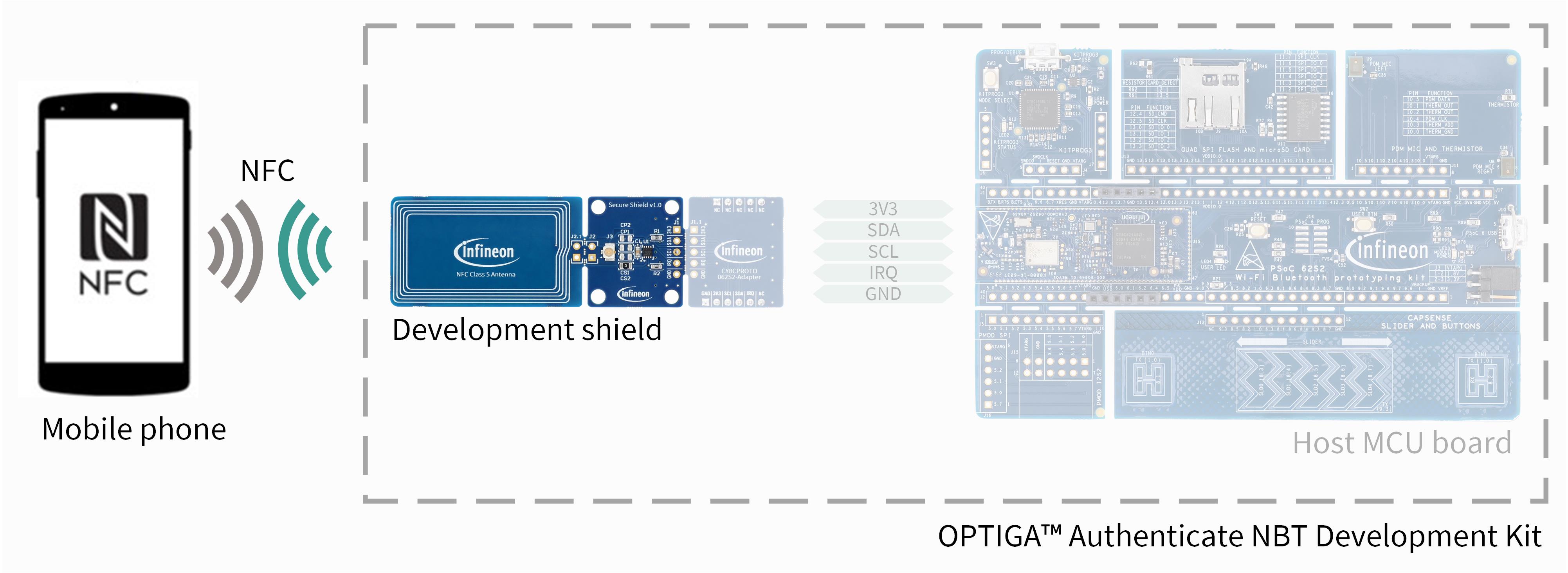
Fig. 36 Hardware setup for evaluation of this use case.
The mobile phone needs the NBT Personalization mobile phone app installed, internet access and to be able to access Infineon’s sample verification server at https://optiga-nbt-cott-service.infineon.com/.
Personalization
Start the NBT Personalization mobile phone app and do the following:
Tab the mobile phone to the Development Shield until the phone vibrates
Select
Brand protectionfrom the available interactionsSet the verification server for COTT to https://optiga-nbt-cott-service.infineon.com/
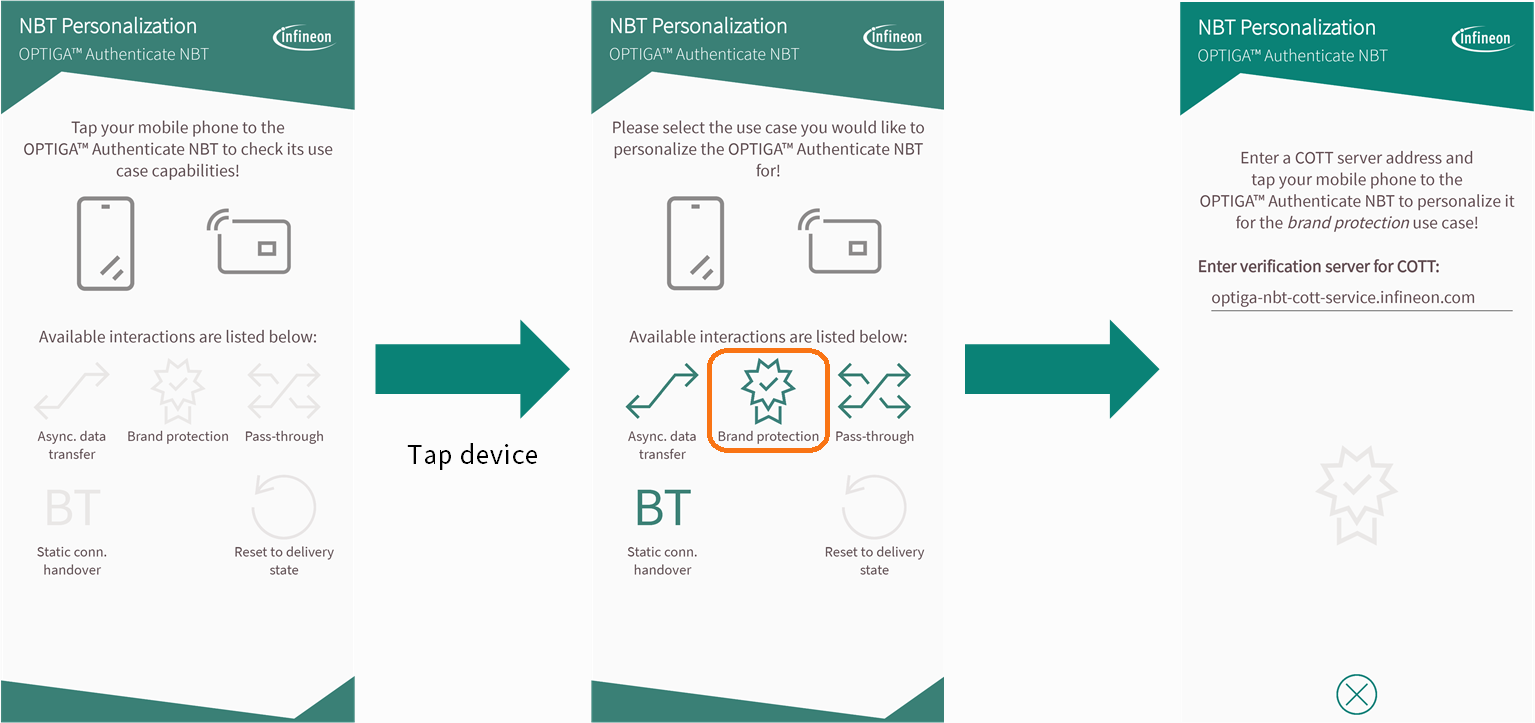
Fig. 37 NBT Personalization mobile phone app user interface.
Authenticity verification
When tapping the mobile phone to the Development Shield for a few seconds, a verification website will open (see Fig. 38). This will happen, even after you close the mobile phone app!
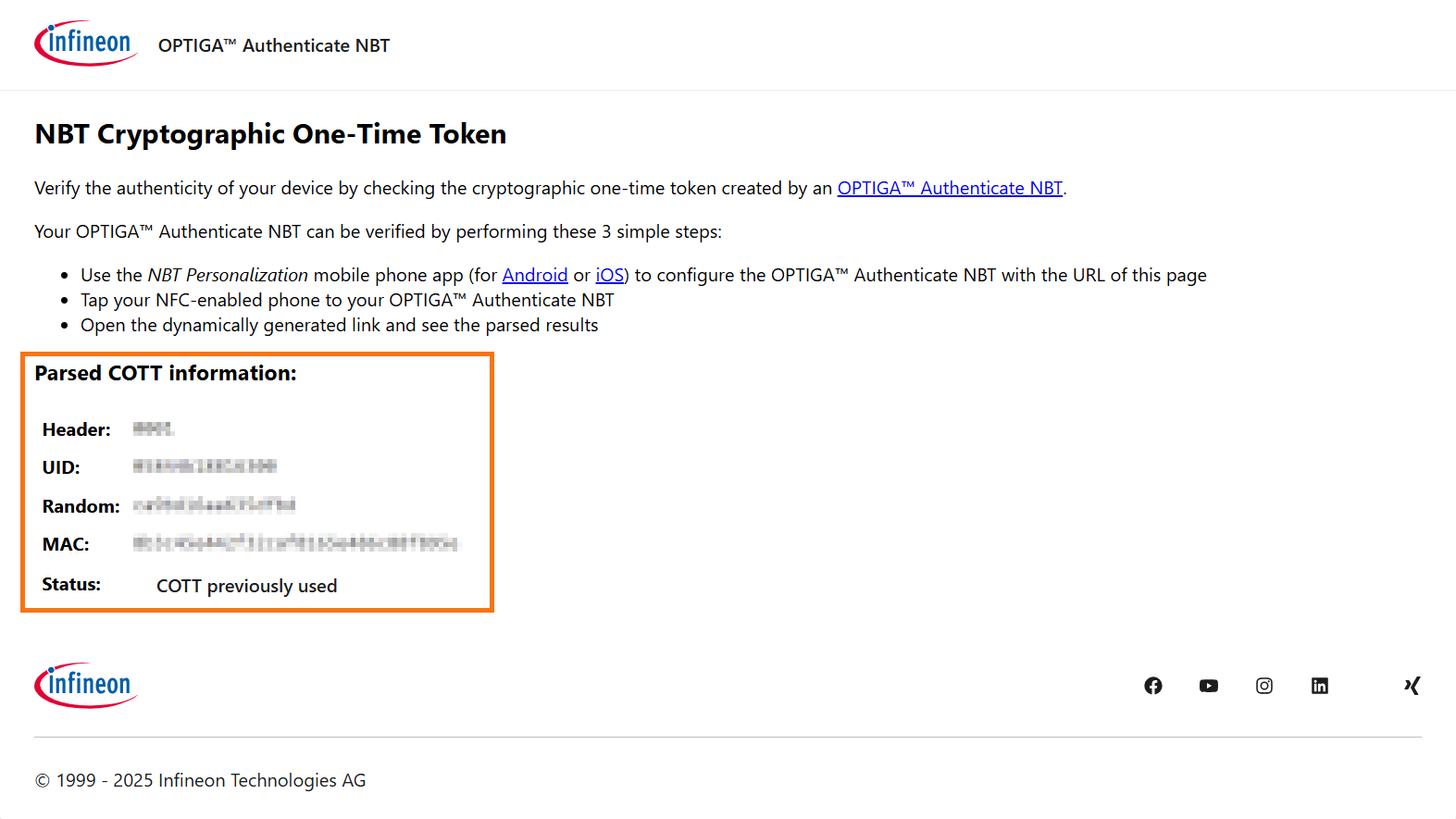
Fig. 38 NBT Cryptographic One-Time Token website for OPTIGA™ Authenticate NBT authenticity verification.
The status is dependent on the COTT parameter (?cott=) embedded in the URL (after the base URL https://optiga-nbt-cott-service.infineon.com/).
The following table lists the possible verification results.
Status |
Explaination |
|---|---|
|
No COTT |
|
New and unused COTT |
|
COTT has already been used (=website has been reloaded) |
|
Invalid COTT |